
DEPOSITIONS AND MEDIA
Put your recordings to work.
LitVid is Litigen’s media repository for organizing recordings and delivery. Keep depositions and other audio and video recordings organized for your case. Use Studio to search the synchronized transcript, view transcript and video together, and prepare selected testimony.
Initial Studio access is reserved for booking clients and Workspace clients. Opposing counsel may log in to view and download purchased video; purchasing video alone does not include Studio or clipping access. Working with recordings from another source? Contact us to confirm the available services and access.

From recording to usable testimony.
LitVid connects recorded evidence with the documents and exhibits your team is preparing.
Keep the media together.
Keep depositions and other recordings organized in LitVid, including media beyond the depositions Litigen records for you.
Find the testimony.
In Studio, search words and phrases in synchronized transcripts and move from the words to the corresponding moment in the recording.
Prepare the passages.
Make clips and designations in Studio, Litigen’s video review and editing tool. Activate selected clips with barcodes in Workspace for immediate use in Presentation.
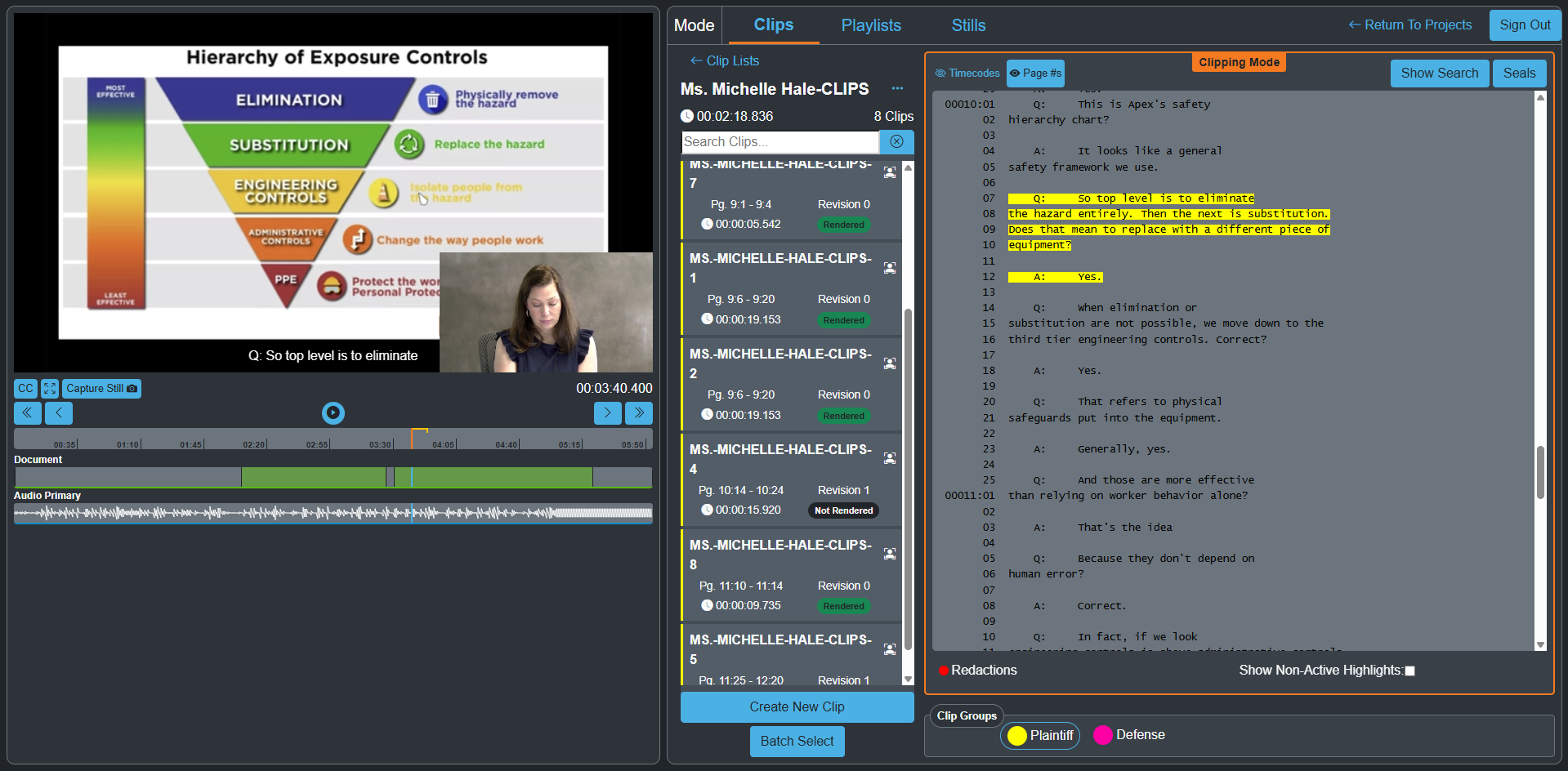
Find the passage. Review the recording.
Use Studio to view the synchronized transcript and video together. Locate testimony, review it in context, and make a clip from the selected passage as the case develops.

AI TRANSCRIPTION
Put testimony to work sooner.
Move from recorded testimony to usable evidence with less waiting. AI-generated rough transcripts connect searchable words to your depositions and other audio and video recordings.
Find the testimony that matters, review it against the recording, and create clips in Studio. Activate those clips in Workspace for immediate presentation alongside your documents and exhibits.
Keep testimony moving—from deposition to your next argument.
AI-generated rough transcripts support review and clip preparation; they do not replace the official transcript.
Create clips in Studio. Activate them in Workspace.
Review video, select testimony, and create clips and designations in Studio. Send your clips to Workspace for barcode activation, making them immediately ready for presentation alongside your documents and exhibits.
Each clip includes a barcoded transcript PDF, so you can read the testimony you are about to put on screen. You can also download the video and subtitle file for playback in external programs such as PowerPoint.
What recordings are you working with?
Tell us about your media, transcripts, and next proceeding. We’ll confirm the right approach for your team.