
WORKSPACE AND PRESENTATION
Take control of the presentation.
Prepare and activate documents, exhibits, and selected clips in Workspace. Use Presentation to retrieve evidence, display it clearly, and control playback. Your prepared evidence is ready to present without a separate preparation step.

How the tools work together.
Keep evidence connected from preparation through presentation.
Workspace
Prepare documents and exhibits, activate selected clips with barcodes, and manage the evidence your team will use.
Presentation
Retrieve evidence, display it clearly, annotate it and control playback in Presentation.
LitVid & Studio
Organize and access recordings in LitVid. Use Studio to review synchronized video and transcripts, create clips and designations, and adjust the recorded witness and evidence views.
Everything the presentation needs.
Activated evidence carries from your ongoing preparation into Presentation.
Documents and video together.
Select the documents and testimony that support your argument. Evidence activated in Workspace is ready to retrieve in Presentation.
Prepared testimony within reach.
Create and render clips in Studio, Litigen’s video review, clipping and designation tool, activate them in Workspace, then play them with Presentation.
The sequence within reach.
Arrange selected testimony and exhibits for the proceeding.
A clear point of focus.
Use highlighting and annotations to bring the relevant evidence into view.
Retrieve the right page.
Use exhibit barcodes to call up the corresponding digital page.
Control for your team.
Operate the tools yourself, with professional support available when you need it.
Put the evidence in view.
Scan a barcode from a printed page or a screen to retrieve the matching document or testimony in Presentation. Highlight the relevant passage and move to prepared testimony. Keep track of exhibit use with ExMap, and confirm that the evidence you need is synced and your clips are activated.
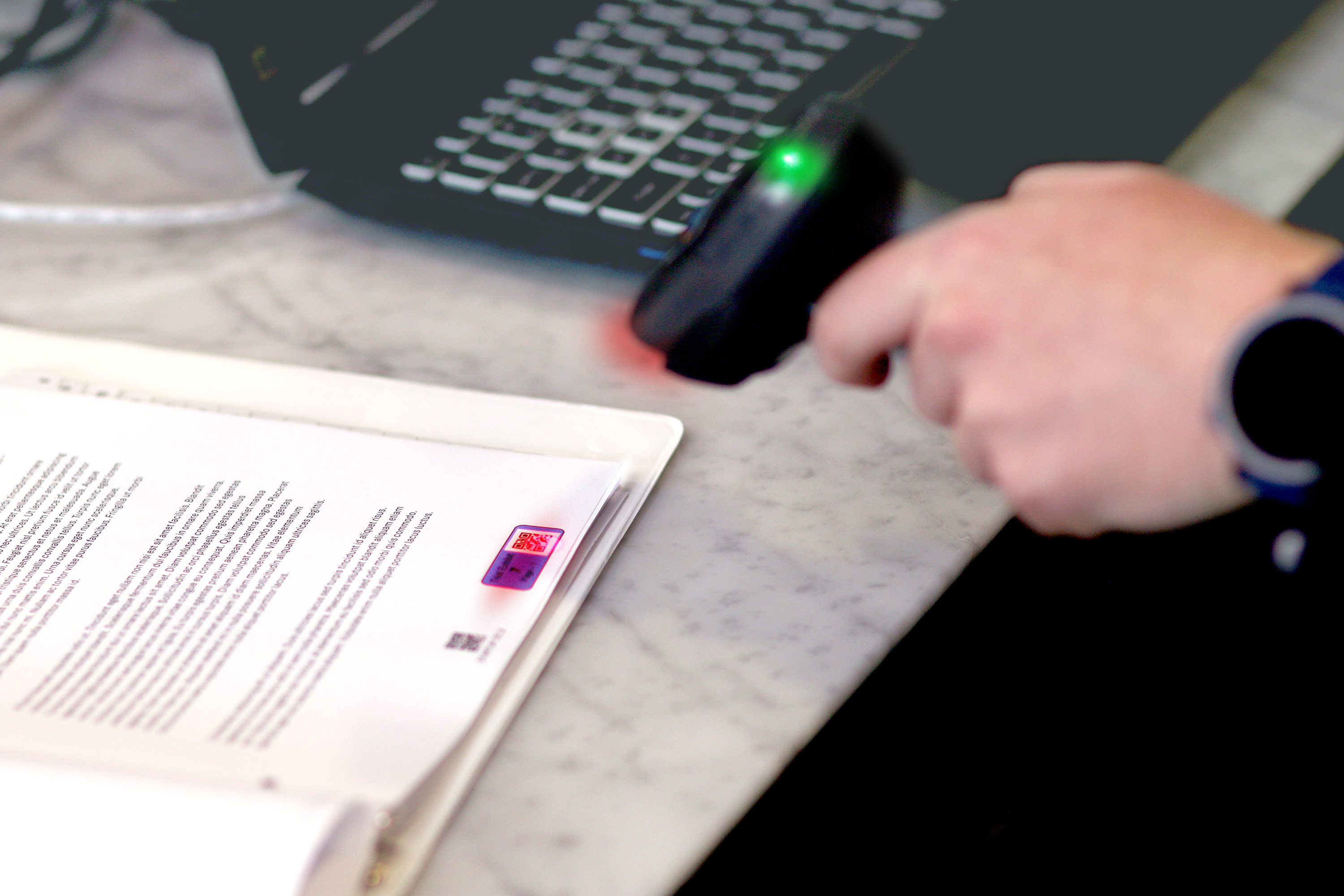
Control the presentation. Preserve the context.
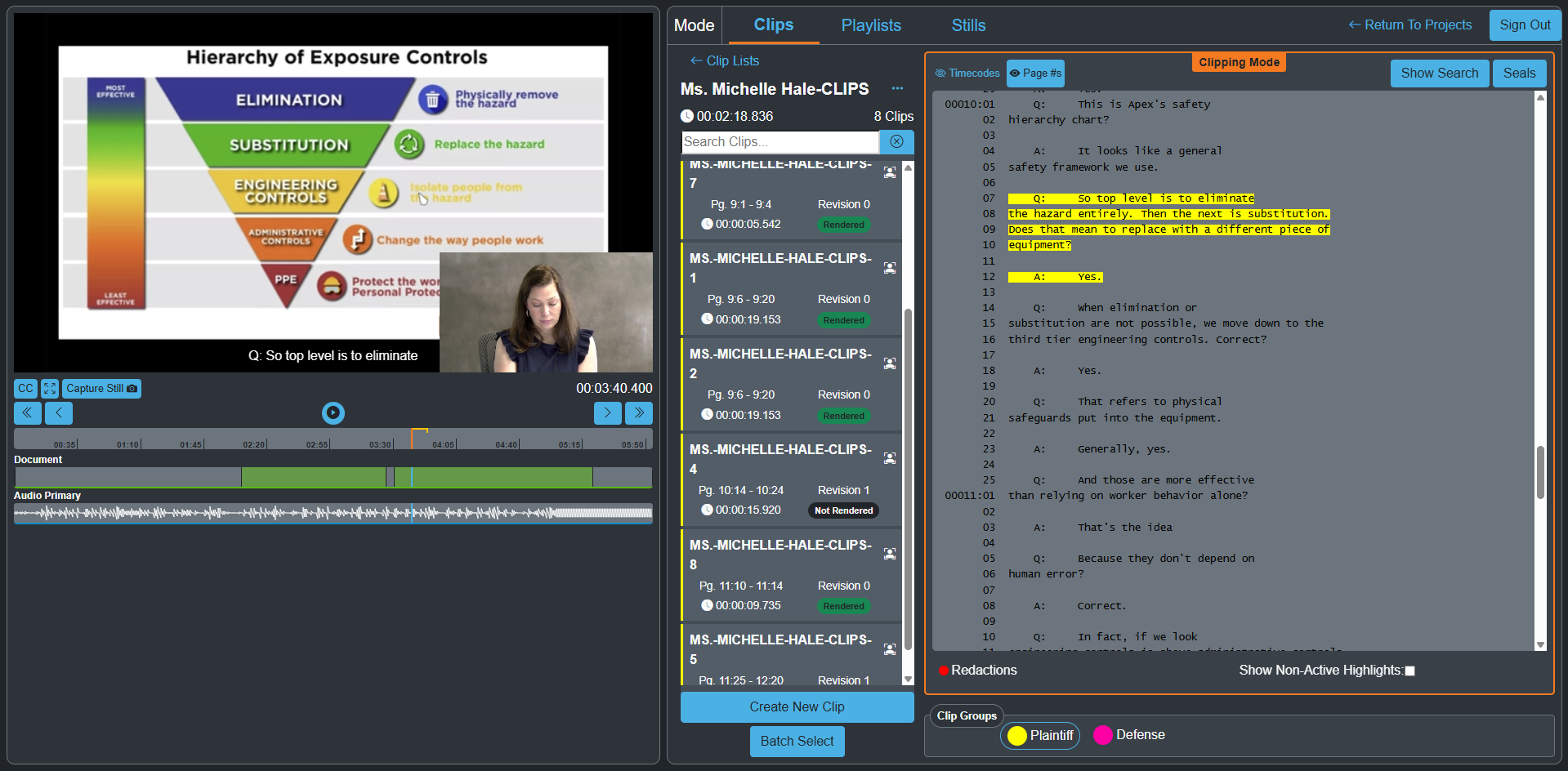
When separate witness and evidence streams are captured during the deposition, refine their size and placement in Studio using the evidence view recorded at the time. Render the clip, activate it in Workspace, and play it in Presentation.

The evidence view comes from the recording made during testimony. It is not a later reconstruction using an exhibit inserted after the deposition.
Prepare together. Present with confidence.
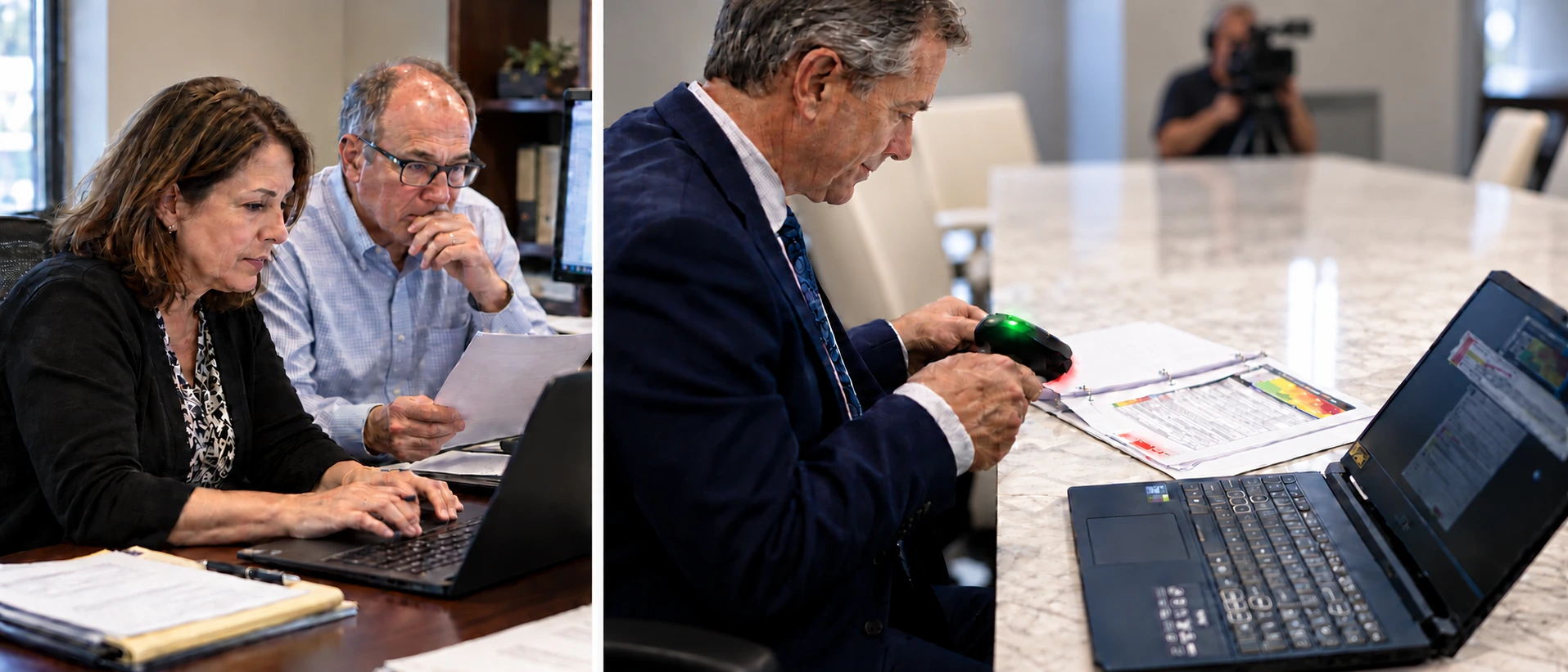
Work with your team in the connected workspace, and sync the case data you need to your Windows trial laptops while connected. Offline, the installed Workspace and Presentation applications let you add evidence, create exhibits, and present evidence already synced.
Syncing, document text search, video editing and clipping, and Bates stamping require an internet connection.
Bring in professional support.
Use Litigen directly or bring in professional preparation and trial support. Tell us about the proceeding and the support your team needs.
Play it forward.
Today’s testimony can shape your next deposition. As you question a witness and display evidence, consider which passages you’ll want to revisit - and how the testimony and evidence will work together in a clip.
Review the recording and create selected clips in Studio. Activate them in Workspace, then bring that testimony into subsequent depositions with Presentation.
See how your team could present with Litigen.
Walk through a practical workflow for the evidence and proceeding you are preparing for.